
Most SEO advice starts with keywords and content. That’s the right place to spend most of your effort, but there’s a catch: if Google can’t crawl, render or understand your pages, the best article in your niche won’t rank.
Technical SEO is the plumbing. Nobody gets excited about it, and you only notice it when something leaks. This checklist is the one we work through on every site we audit, roughly in the order we do it, because some fixes only matter once earlier ones are in place.
You don’t need to be a developer for most of it. You do need Google Search Console set up and about an afternoon.
Before you start: tools you’ll need
- Google Search Console (free). Non-negotiable. It shows how Google actually sees your site.
- PageSpeed Insights (free). Real-world speed data for your pages.
- A crawler such as Screaming Frog (free up to 500 URLs) or Sitebulb.
- Your SEO plugin if you’re on WordPress, such as Rank Math or Yoast.
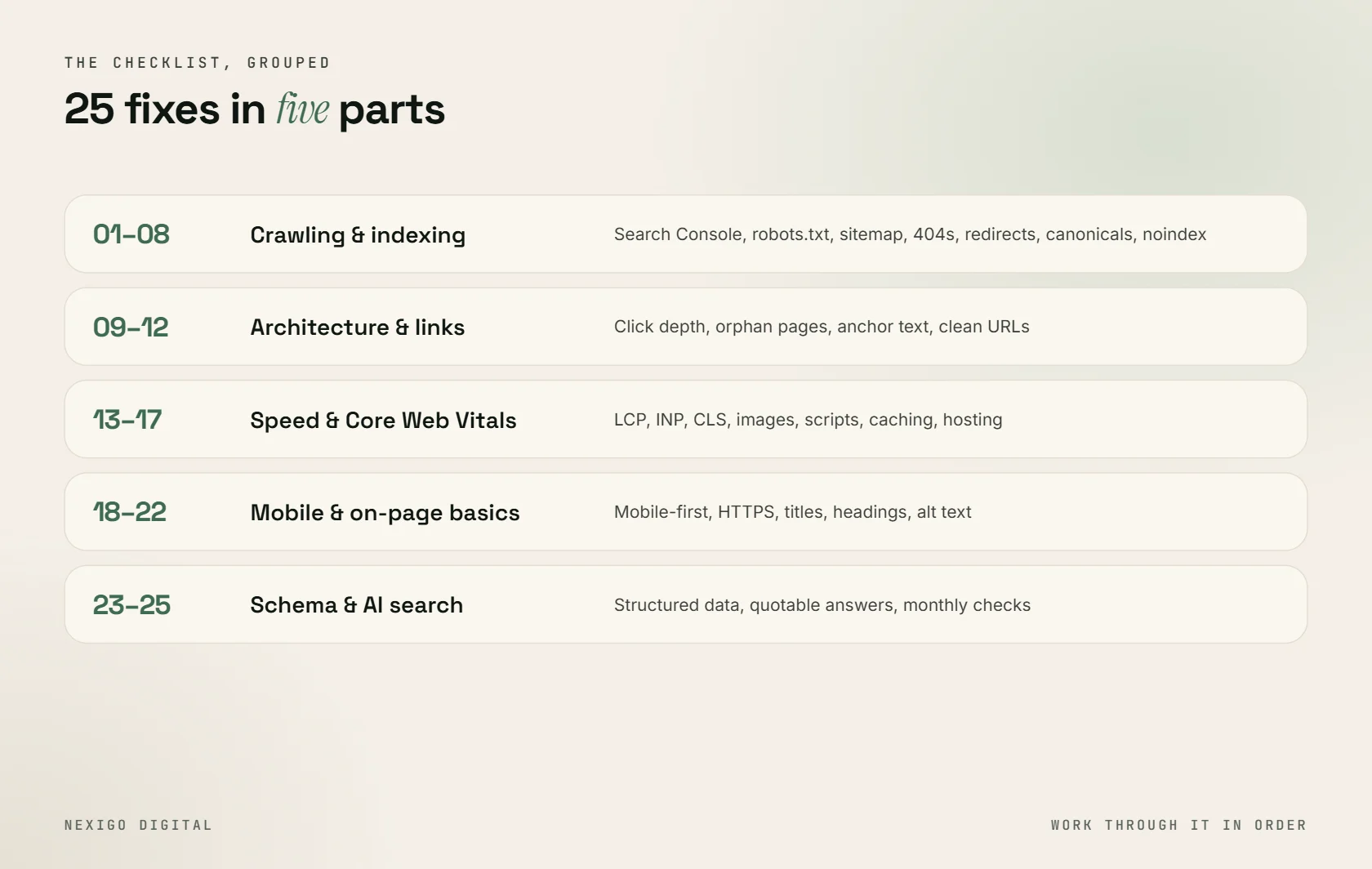
Part 1: Crawling and indexing
If Google can’t find a page or decides not to index it, nothing else on this list matters.
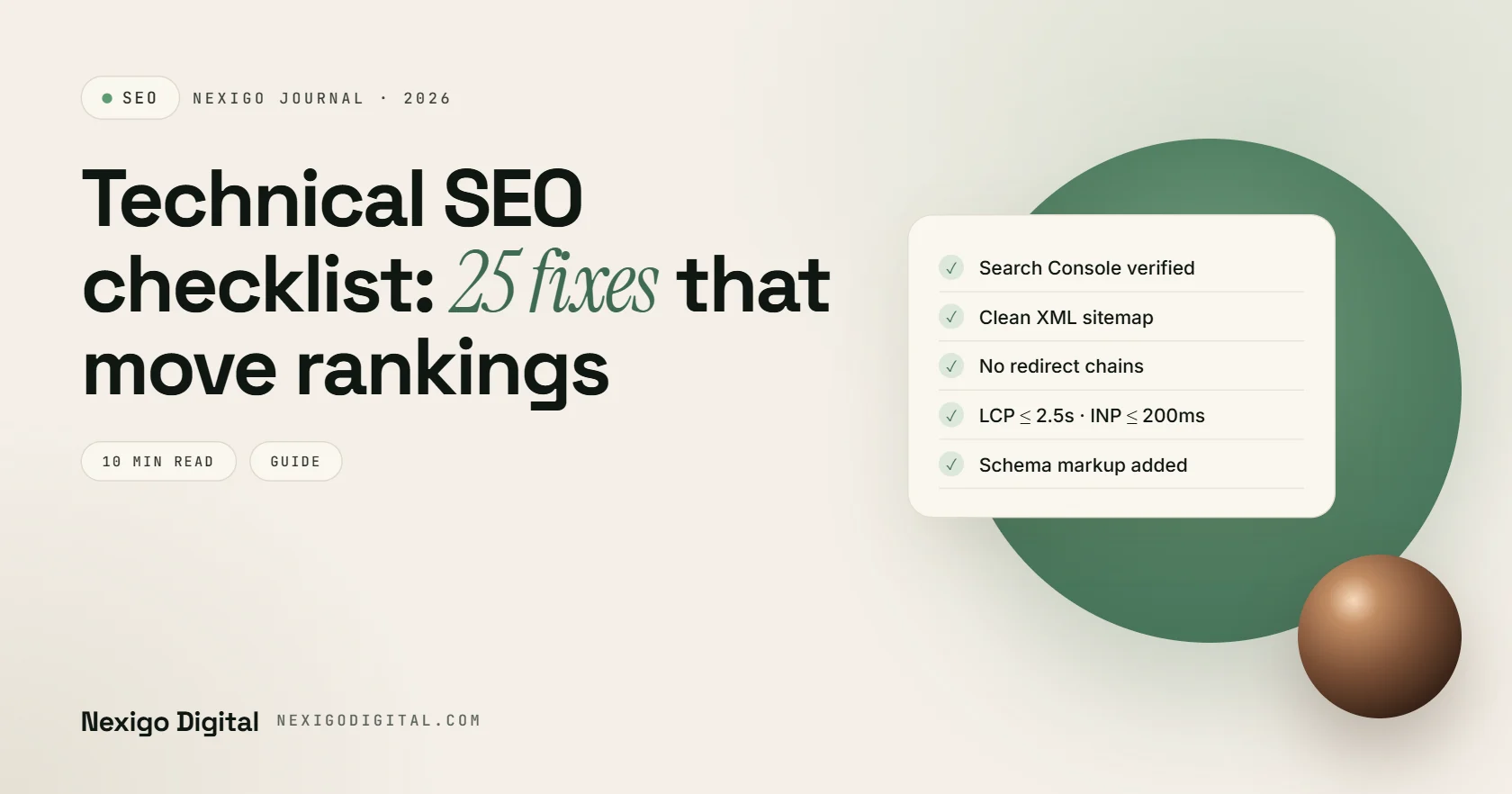
1. Verify your site in Google Search Console
Add the domain property (not just the URL prefix) so you see data for every subdomain and both http and https. Then submit your sitemap. If you skip everything else on this list, at least do this.
2. Check the Pages report for indexing problems
In Search Console, open Indexing → Pages. Look at “Why pages aren’t indexed”. Some reasons are fine (redirects, intentional noindex). Others need attention:
- “Crawled – currently not indexed” often means Google found the page but didn’t think it was worth indexing. Usually a content quality or duplication issue.
- “Discovered – currently not indexed” can mean crawl budget or internal linking problems.
- “Blocked by robots.txt” on pages you want ranked is an easy, painful mistake.
3. Review robots.txt
Open yourdomain.com/robots.txt. Make sure you aren’t blocking important folders, CSS or JavaScript. A leftover Disallow: / from a staging site has quietly ruined plenty of launches.
4. Keep your XML sitemap clean
Your sitemap should list only pages you want indexed: 200 status, canonical, not noindexed. Remove redirects, 404s, tag archives you don’t care about and thin pages. Most SEO plugins generate this automatically, but check what’s actually in it.
5. Find and fix broken links and 404s
Run a crawl and export every internal link pointing to a 404. Fix the link or redirect the old URL to the most relevant live page. Broken internal links waste crawl budget and frustrate visitors.
6. Clean up redirect chains
A redirect chain is when URL A redirects to B, which redirects to C. Each hop slows things down and dilutes signals. Point every old URL straight to its final destination with a single 301.
7. Set canonical tags correctly
Every indexable page should have a self-referencing canonical tag. Duplicate or near-duplicate pages (filtered product lists, print versions, URLs with tracking parameters) should point their canonical to the main version.
8. Use noindex on pages that shouldn’t rank
Thank-you pages, internal search results, cart and checkout pages, thin tag archives, staging pages. Add noindex and keep them out of your sitemap. This keeps Google’s attention on pages that matter.
Part 2: Site architecture and internal links
9. Keep important pages within three clicks of the homepage
Pages buried five clicks deep get crawled less often and tend to rank worse. Your main services, categories and best content should be reachable from the navigation or a hub page in two or three clicks.
10. Fix orphan pages
An orphan page has no internal links pointing to it. Google may still find it via the sitemap, but it looks unimportant. Your crawler can compare sitemap URLs with linked URLs to find them. Link each one from a relevant page.
11. Use descriptive internal anchor text
“Click here” tells Google nothing. “Our WordPress development service” tells it exactly what the target page is about. Don’t stuff the same exact keyword everywhere, but be descriptive.
12. Use clean, readable URLs
Short, lowercase, hyphen-separated, and descriptive: /technical-seo-checklist/ beats /blog/post?id=8823. Avoid changing URLs on established pages unless you redirect the old ones.
Part 3: Speed and Core Web Vitals
Speed won’t rescue weak content, but slow pages lose visitors, and Google uses page experience signals including Core Web Vitals.
13. Check Core Web Vitals in Search Console
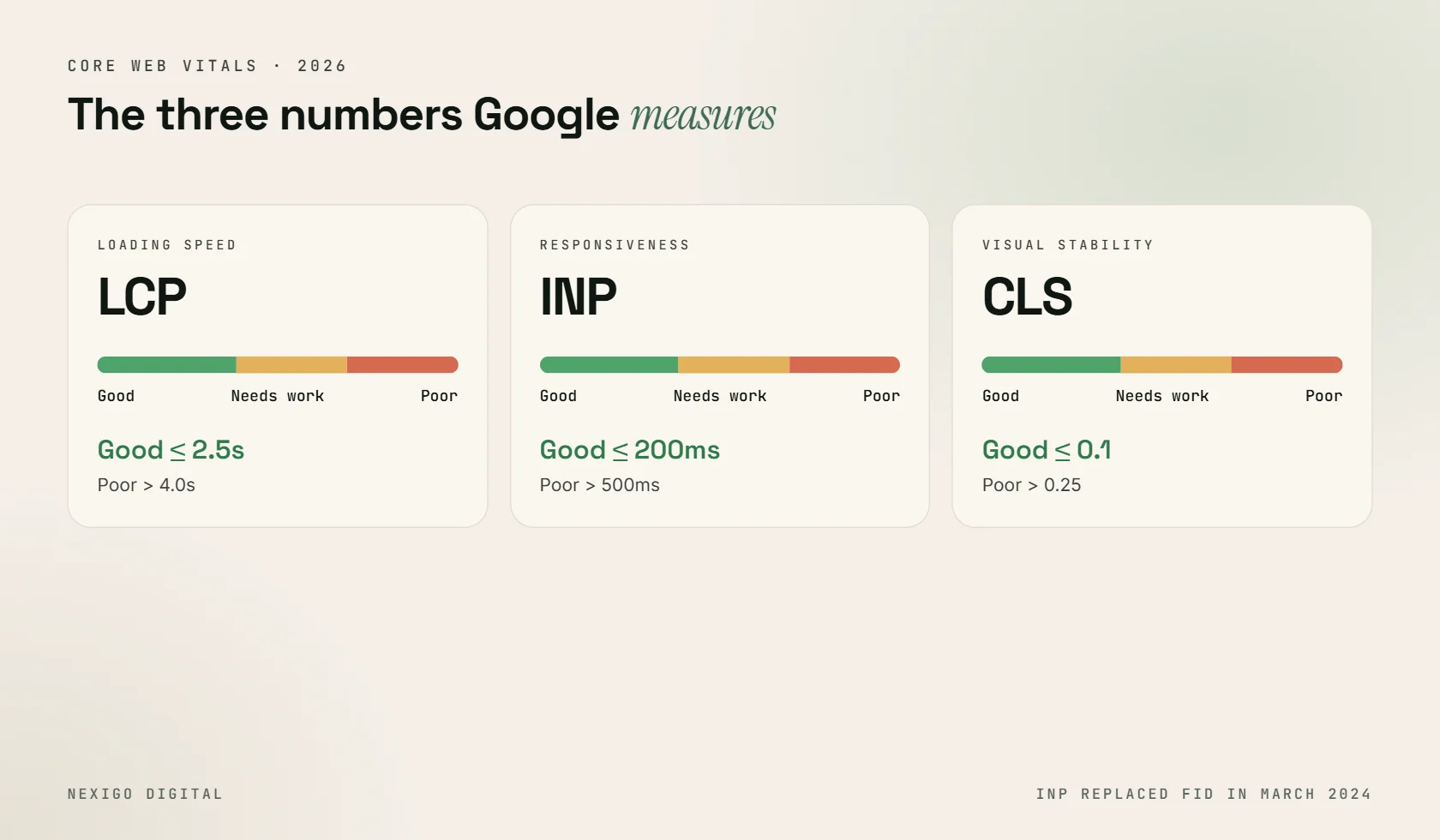
The three metrics, and the “good” thresholds Google uses in 2026:
| Metric | What it measures | Good |
|---|---|---|
| LCP (Largest Contentful Paint) | How fast the main content loads | 2.5 seconds or less |
| INP (Interaction to Next Paint) | How quickly the page responds to taps and clicks | 200 milliseconds or less |
| CLS (Cumulative Layout Shift) | How much the layout jumps while loading | 0.1 or less |
INP replaced FID (First Input Delay) as a Core Web Vital in March 2024, so older guides that talk about FID are out of date. Use the Core Web Vitals report in Search Console for real-user data, then PageSpeed Insights to diagnose individual pages.
14. Compress and resize images
Images are usually the heaviest thing on a page. Serve WebP or AVIF, size images to the space they’re displayed in, and lazy-load anything below the fold. Don’t lazy-load the main hero image, though, as that hurts LCP.
15. Cut unused JavaScript and CSS
Page builders, sliders, chat widgets and tracking scripts add up. Remove plugins you don’t use, delay non-critical scripts, and load third-party tags through Google Tag Manager so you can see what’s running.
16. Use caching and a CDN
Page caching, browser caching and a CDN such as Cloudflare can cut load times dramatically, especially for visitors far from your server. On WordPress, a good host plus a caching plugin covers most of this.
17. Upgrade your hosting if the server is slow
If your Time to First Byte is consistently over about 0.8 seconds, no plugin will save you. Cheap shared hosting is one of the most common causes of slow WordPress sites. Our guide on website costs in India covers what reasonable hosting costs.
Part 4: Mobile and on-page technical basics
18. Test on real phones, not just a resized browser
Google uses mobile-first indexing, so the mobile version of your site is the one that counts. Check that text is readable, buttons are easy to tap, nothing overflows sideways and pop-ups don’t cover the content.
19. Use HTTPS everywhere
Every page should load over HTTPS, and every http URL should redirect to its https version. Also check for “mixed content”, where an https page loads images or scripts over http.
20. Write a unique title tag and meta description for every page
Duplicate titles confuse Google and searchers. Keep titles under about 60 characters with the main keyword near the front, and write meta descriptions that make people want to click, around 150–160 characters.
21. Use one H1 and a logical heading structure
One H1 that describes the page, then H2s for main sections and H3s inside them. It helps search engines and screen readers understand the page, and it makes the content easier to skim.
22. Add descriptive alt text to images
Alt text describes the image for visually impaired users and helps Google understand it. “Blue running shoes with white sole, side view” is useful. “IMG_4421” or “shoes shoes buy shoes” is not.
Part 5: Structured data and AI search
23. Add schema markup that matches the page
Structured data helps search engines understand what a page is: an article, a product, a local business, an FAQ, a breadcrumb trail. Useful types for most businesses:
- Organization or LocalBusiness on the homepage and contact page
- BreadcrumbList across the site
- Article or BlogPosting on blog posts
- Product with price and availability on product pages
Only mark up what’s actually visible on the page, and test it with Google’s Rich Results Test.
24. Make your content easy for AI search to quote
Google’s AI Overviews, ChatGPT search and Perplexity all pull answers from web pages. The same good habits help: answer the question directly near the top, use clear headings that match how people ask questions, add short definitions and tables, and keep facts accurate and up to date. Pages that are hard to crawl or hidden behind heavy JavaScript are harder for these systems to use as sources.
25. Monitor monthly and fix issues early
Technical SEO isn’t a one-time project. Plugins update, pages get added, developers change things. Once a month, check:
- New indexing errors in Search Console
- Core Web Vitals status
- New 404s and redirect chains
- Crawl stats for sudden drops
Small problems caught early are quick fixes. The same problems found six months later usually come with a traffic drop.
Platform notes: WordPress and Shopify
Most of this checklist applies everywhere, but each platform has its own habits.
On WordPress, the usual culprits are plugin bloat, cheap hosting and duplicate archive pages. Use one SEO plugin (not two), noindex tag and author archives unless they add value, keep plugins updated, and choose a lightweight theme. Page builders like Elementor are fine when used carefully, but every extra widget and add-on adds code to the page.
On Shopify, watch out for duplicate product URLs created through collections (Shopify handles canonicals, but internal links should point to the main /products/ URL), app scripts that slow the storefront, and thin collection pages with no description. Shopify generates your sitemap and robots.txt automatically, and you can edit robots.txt through the theme if you need to.
If you’re still choosing a platform, our WordPress vs Shopify comparison covers SEO differences in more detail.
Where to start if this feels like a lot
Don’t try to do all 25 in one go. If you only have an hour, do these five:
- Set up Search Console and submit your sitemap (fix 1)
- Check the Pages report for important pages that aren’t indexed (fix 2)
- Look at robots.txt for accidental blocks (fix 3)
- Run PageSpeed Insights on your homepage and top service page (fix 13)
- Fix broken internal links (fix 5)
That alone covers the most common serious technical problems.
Want us to run the audit for you?
If you’d rather hand this off, our SEO and content engineering team runs a full technical audit, fixes the issues, and then builds the content plan on top of a site that’s ready to rank. Get in touch and we’ll start with a free look at your Search Console data.
Frequently asked questions
What is technical SEO?
Technical SEO is the work that helps search engines crawl, render, index and understand your website. It covers things like site speed, mobile usability, sitemaps, robots.txt, redirects, canonical tags, HTTPS and structured data.
What are the Core Web Vitals thresholds in 2026?
Google’s “good” thresholds are LCP of 2.5 seconds or less, INP of 200 milliseconds or less, and CLS of 0.1 or less. INP replaced FID in March 2024.
How often should I do a technical SEO audit?
Run a full technical audit at least once or twice a year, and after any redesign or migration. Check Search Console for new errors every month.
Does site speed affect Google rankings?
Yes, page experience signals including Core Web Vitals are part of Google’s ranking systems, but they act more like a tiebreaker than a main factor. Speed also has a big effect on bounce rate and conversions.
Can I do technical SEO myself?
Many fixes, like submitting a sitemap, fixing broken links, writing titles and adding alt text, can be done without a developer. Speed optimisation, schema and migrations usually benefit from technical help.
Need help with this?
Get a website that brings enquiries, not just visitors.
Send me your current website or idea on WhatsApp. I'll reply personally with honest advice and a clear quote.

Written by
Sourabh Kumar Pandit
I have been building websites and running SEO and ad campaigns for Indian businesses since 2019, with 200+ projects for 180+ clients from Delhi and Patna. I write these guides from what actually works on real client projects.